Kansas State University

search

IT News

Month: April 2018

Outlook on the Web (OWA) mobile apps to be retired on May 15

Microsoft is retiring Outlook on the Web (OWA) mobile apps for iPhone, iPad and Android on May 15, 2018. You should begin using the Outlook app for iOS and Android.

Mobile device requirements

  • Windows: Office Mobile applications (Word, Excel, PowerPoint, OneNote, Outlook Mail, and Outlook Calendar) require Windows 10.
  • iOS: Office for iPad and iPhone requires iOS 10.0 or later. Office for iPad Pro requires iOS 10.0 or later.
    Android: Office for Android can be installed on tablets and phones that meet the following criteria: running Android KitKat 4.4 or later version and have an ARM-based or Intel x86 processor.
    Mobile browsers: Any mobile browser supported by Microsoft may be used.
Before leaving K-State employee checklist

This does not apply to retirees, emeritus, or employees who have taken a K-State course.

240 days after you leave K-State, access to your K-State Office 365 account is discontinued and any data you have on the central computer systems and backups are deleted. 

Do these tasks before you leave K-State, or as soon as you receive an email notice that access to your data will be removed soon.

  • Copy all email messages and folders you want to keep.Storage options include:
    • Your personal computer
    • An external storage device
    • Internet storage services
  • Forward business-related e-mail – Forward business related email to department head or department designee.
  • Migrate to a new email service – Options include, but are not limited to, Gmail, Hotmail, Yahoo Mail, etc. Since K-State allows for faculty/staff to use email for limited personal use, remember to forward personal business stored in email to your new email service.
  • Review mailing lists – Subscribe from your new email address for lists you want to keep. Then unsubscribe your K-State address from all lists.  Current employment is a requirement for some list subscriptions, so not all lists may be available post-employment. If you have questions, check with the mailing-list owner to verify if you can continue to receive email.
  • Copy any files you are entitled to keep, including:
    • Files on your office computer
    • Files on the central Unix system
    • Files on your departmental or central file server
    • Your personal webpages
  • Transfer ownership of shared Qualtrics surveys – If you have Qualtrics surveys that are shared, request that the IT Help Desk transfer ownership of the survey(s) to the appropriate individual.
  • Transfer ownership of shared group accounts – If you have shared group accounts, transfer ownership of the group account to another individual in the group.
  • Remove software that belongs to K-State – Remove software on your personal computer that was received under a Kansas State University site license or volume-purchase agreement, including but not limited to the following list:
  • Have you been a staff person living in a residence hall? Point your computer back to the Microsoft Windows Update Service.
    1. Download K-State’s SUS Removal file and save it to your computer’s desktop.
    2. Double-click the “SUSRemoval.exe” file on your desktop. This will reset your computer to point to the Microsoft Windows Update Service.

    If you don’t, your computer will stop getting Microsoft updates, including security updates, and it will be more vulnerable to malware and hackers.

  • Continue to change your K-State eID password – Change your eID password when required every 180 days. It keeps your K-State eID current, so you can sign in to systems for which you’re authorized, including eProfile, KSIS, K-State Online, HRIS, etc.

Before leaving K-State student check list

Do these tasks before you leave K-State, or as soon as you receive an email notice that access to your data will be removed soon.

  • Email – If you took one or more K-State courses, your email account, messages, and folders will currently continue at K-State long-term. However, policies could change in the future.
  • Office 365 Apps: You will have access to Office 365 apps for one year post your affiliation/graduation from K-State. You will receive notification when this is about to expire.
  • Lafene Health Center Patient Portal – You retain access to the portal.
  • Review mailing lists – Unsubscribe from any mailing lists you no longer need to be on.
  • Copy any files you are entitled to keep, including:
    • Office 365 OneDrive files
    • Files on your office computer
    • Files on the central Unix system
    • Files on your departmental or central file server
    • Your personal web pages

    After 30 days, your data is deleted from the central computer systems and backups. After 1 year, your OneDrive files and folders will be deleted and will not be recoverable.

  • Remove software that belongs to K-State – Remove software on your personal computer that was received under a Kansas State University site license or volume-purchase agreement, including but not limited to the following:
  • Students in residence halls: Reset Microsoft Windows Update Service – Point your computer back to the Microsoft Windows Update Service.
    1. Download K-State’s SUS Removal file and save it to your computer’s desktop.
    2. Double-click the “SUSRemoval.exe” file on your desktop. This will reset your computer to point to the Microsoft Windows Update Service.

    If you don’t, your computer will stop getting Microsoft updates, including security updates, and it will be more vulnerable to malware and hackers.

  • Continue to change your K-State eID password – Change your eID password when required every 180 days. It keeps your K-State eID current, so you can sign in to systems for which you’re authorized, including eProfile, KSIS, K-State Online, HRIS, etc.

Continue reading “Before leaving K-State student check list”

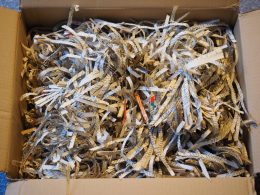
Securely dispose of paper documents

While walking through the halls of one of the buildings on campus late one evening, a nefarious individual found green bar sheets in a box outside an office. The interloper took a closer look and found the mother lode, green bar sheets with names, SSNs and grades. The individual uses the information to steal the identity of more than one student.
The above scenario is not that far-fetched. Sensitive information is often found discarded in the office trash cans, dumpsters and in hallway receptacles.
""
While we may have quit printing green bar sheets years ago, they still surface along with other documents, and sometimes they surface in the halls, unattended. Make it a practice to shred documents with sensitive information. Documents to shred include:
  • Scantron forms
  • Greenbar grade sheets
  • Rosters printed from K-State Online, iSIS, etc.
  • Student papers with personal identity information and grades
  • Data with credit card information and canceled checks
  • Personnel files
  • Other sensitive papers with identity or financial information

Betsy Draper, Interim Chief Information Security Officer, suggests, “If you are in doubt about shredding, err on the safe side and shred anyway.”

If you have a large amount to shred and would like to contract the work out, Document Resources Inc. is on state contract.

Resources


ITS update

UpdatesMany of the top 10 Information Technology Services (ITS) projects are related to relieving technical debt, where ITS is replacing and retiring outdated equipment associated with the converged infrastructure. Other projects include:

  • Duo multi-factor authentication Initiative
  • Update and migrate to a new automation infrastructure (CHEF)
  • Data warehouse for financial information
  • HRIS Peoplesoft application upgrade to 9.2
  • Improve the process of software acquisition, customer relationship management and managing the request forms/tasks

Continue reading “ITS update”

K-State Online April updates

by Information Technology ServicesK-State Online Info graphic

Updates to Canvas were released on April 21. Canvas operates on a monthly release cycle, with features added or updated every three weeks.

To see all the new features and fixed bugs, view the complete April Release Notes. In addition to the Canvas release, Information Technology Services releases updates to services and integrations with K-State Online through the month as necessary. Continue reading “K-State Online April updates”

K-State Olathe now part of the K-State Mobile app

Image of mobile appThe K-State Mobile app now includes K-State Olathe, and you can set the app location to the Olathe campus.

To change your app location, scroll to the bottom of the screen. Tap My Location and choose the Manhattan Campus, Polytechnic Campus, or K-State Olathe.

The K-State Mobile app connects students, faculty and staff with the resources they need, right at their fingertips:

  • Check your class schedule
  • Use an interactive map
  • Get assistance
  • Connect to campus activities

The K-State Mobile app is available on both the Apple App Store and Google Play.

K-State Online updates

by Information Technology ServicesK-State Online Info graphic

Updates to Canvas were released on March 31. Canvas operates on a monthly release cycle, with features added or updated every three weeks.

To see all the new features and fixed bugs, view the complete March Release Notes. In addition to the Canvas release, Information Technology Services releases updates to services and integrations with K-State Online through the month as necessary. Continue reading “K-State Online updates”

KSIS: Processing Minors session offered April 11

A “Processing Minors” training session is now available for K-State employees who approve minors for students who are graduating. The training session is 10 -11 a.m. Wednesday, April 11, in 306 Calvin Hall.

Registration through HRIS is required. For more information, see the article Using HRIS to register for classes.

If you are unable to attend a session for Processing Minors, please contact Fred Darkow at 785-532-3138 or fdarkow@k-state.edu to discuss training availability.

Grading in KSIS training for Spring 2018 now available

Grading in KSIS training is available for faculty and staff who are involved in submitting grades at the end of the spring 2018 term. Training topics include:

  • Transferring grades from Canvas to KSIS
  • Manually entering grades in KSIS
  • Updating grades in KSIS
  • Submitting a Grade Change Request form in KSIS
  • Q&A for grade submission at K-State

All sessions take place in 306 Calvin Hall.

  • Wednesday, April 23, 2-3 p.m.
  • Thursday, April 24, 10:30-11:30 a.m.

To attend, sign up in HRIS (see the sign-up instructions). Walk-in attendees are welcome.

If you are unable to attend a session for Grading in KSIS but would like to receive training, contact Fred Darkow at 785-532-3138 or fdarkow@k-state.edu to discuss availability.